Newcomer
October 2, 2026
Solved

Dropdown Conditional Fields including more than what I intend

I work in our companies AP Department, so the forms I am getting signed are high-cost invoices that need approval before they are paid. Most invoices are valid and are to be paid, but occasionally invoices are not valid and therefore should not be signed. I set up a dropdown with 2 states, Approved, and Disputed. When Approved is selected I have the conditional field set to reveal the signature box, and when dispute is selected, A box appears with “UNDER DISPUTE” in bold.


The issue I am running into is that the dropdowns all become connected to each other. I imagine its because I am merging the recipients? Each envelope is a stack of 3 different invoice types that need to be signed off on by 1 to 2 people, with a specific signing order. I use templates for each of the invoice types, but all need to go to A, then some need to go to B when A is done. I HAVE been checking “Set Signing Order”, then changing all of the A signers to 1, then adding the B signer and setting them to 2. I then get the prompt to merge the recipients and do so, since all the A signers are just the same person. I imagine I still need to do this step, can the dropdown be configured in some way that each instance is specific only to the invoice its on, and not revealing the signature line on every single invoice?


Hopefully that made sense, I worry I started getting a little lost myself by the end there. Any advice would be helpful!
Community Moderator
October 2, 2026

Hello ​@Chad.Wilson,

Welcome to the Docusign Community!

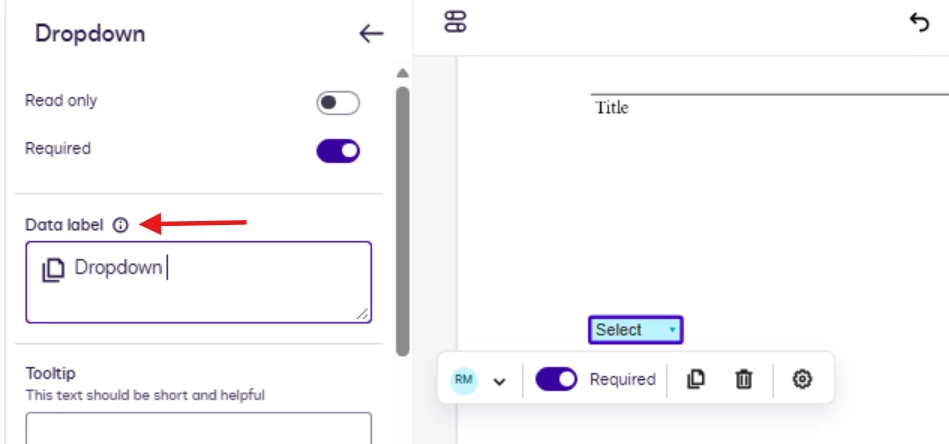
Thanks for the detailed explanation! One thing to check is whether the Approved/Disputed dropdowns have the same Data Label. If they do, DocuSign may treat them as the same field, causing the conditional logic to affect multiple invoices.
 

Try giving each invoice’s dropdown a unique Data Label and test the envelope again. You should still be able to keep the same recipient and signing order.

I hope this helps.


Best Regards,

Jenny | Docusign Community Moderator

If this helped, like 👍and mark it as “Best Answer”

4 replies

Community Moderator
October 2, 2026

Hello ​@Chad.Wilson,

Welcome to the Docusign Community!

Thanks for the detailed explanation! One thing to check is whether the Approved/Disputed dropdowns have the same Data Label. If they do, DocuSign may treat them as the same field, causing the conditional logic to affect multiple invoices.
 

Try giving each invoice’s dropdown a unique Data Label and test the envelope again. You should still be able to keep the same recipient and signing order.

I hope this helps.


Best Regards,

Jenny | Docusign Community Moderator

If this helped, like 👍and mark it as “Best Answer”

Translate
Newcomer
October 6, 2026

Thank you so much for your reply! It managed to fix one issue but reveal another unfortunately. So you hit the nail on the head, each invoice affected by the same template all had the same Data Label, and changing the data label for each invoice seems to have solved that problem. However, My dropdowns are tied up with conditional logic, and there is a message saying that a data label cannot be edited with conditional logic

So in order to change the data label I had to remove my conditions, make each label unique, and then reapply the conditions. Is there another avenue I can try or is this just unfortunately the way it works? Might Custom Fields somehow help me here?

Translate
Community Moderator
October 6, 2026

Hello ​@Chad.Wilson,

Thanks for checking. What you’re seeing is expected behavior: once a field is used in conditional logic, its data label can’t be edited because the rule uses that label to identify the trigger and dependent fields.

Custom Fields are unlikely to provide a workaround. If you mean custom recipient fields or tabs, those can be used with conditional logic, but they still rely on data-label references and won’t bypass this restriction.

If you have access to a demo account, you can download your template as a JSON file and upload it there to test the same configuration without rebuilding it from scratch. Go to Templates, open the template, select Actions > Download, and then upload the JSON file in your demo account. The upload creates a new template, so you may validate the labels and conditional logic after import.

If you don’t have a demo account yet, you can create an account here for free 👉 Get your free developer account

I hope this helps. Let me know if you have any questions


Best Regards,

Jenny | Docusign Community Moderator

If this helped, like 👍and mark it as “Best Answer”

Translate
Community Moderator
October 16, 2026

Hello ​@Chad.Wilson,

I hope you’re doing well. I’m following up to see if the information shared above was helpful. If it added clarity or answered your question, marking it as Best Answer ✅ will highlight it for others in the community. If you still need more support, we’re here to help.


Best Regards,

Jenny | Docusign Community Moderator

Translate