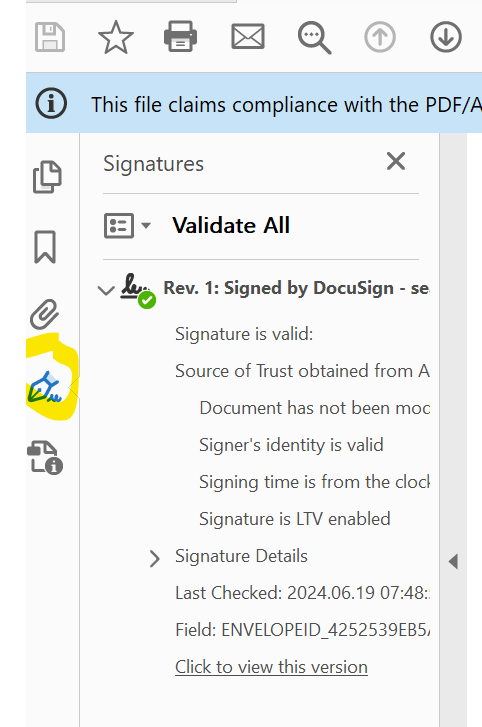
I received a PDF document already signed by email from a third party. It contains a DocuSign Envelope ID number. How can I verify the veracity of this signature?
When you open a DocuSign completed envelope in Adobe Reader, you can verify that the document has not been tampered with by using the signature validation feature next to the signature icon. Here’s how this process works and what it involves:
Steps to Verify a DocuSign Completed Envelope in Adobe Reader
Open the Document:
Launch Adobe Reader and open the completed document.
Signature Panel:
On the right-hand side or top toolbar, you’ll see a signature icon (a pen or a ribbon). Click on this icon to open the signature panel. This may also automatically open when you open a document with signatures.
Signature Details:
Within the signature panel, you’ll find detailed information about the digital signature. Click on the signature to view the details.
Validation Status:
Adobe Reader will check the validity of the signature against the certificate authority that issued the signing certificate. You will see a message such as:
"Signed and all signatures are valid": This indicates that the document has not been tampered with since it was signed, and the signatures are authentic.
"Signature is valid, but...": This may suggest the document is valid but could have minor issues, such as untrusted certificates.
"Signature is invalid": This indicates the document has been altered after signing, or there’s an issue with the signature.
Welcome to the DocuSign Community! Your feedback is highly valued. If you find my response helpful, please give it a "Like" and consider marking it as the "Best Answer" to assist others with similar issues.
The Certificate of Completion (CoC) automatically incorporates this information for each envelope, bearing the same envelope ID as the signed documents. Digital electronic signatures, this information is also directly visible within the document itself upon examination of the certificate.
You can download the certificate and document to verify.
Translate
Way to Learn | I'd love your feedback | Hit Like | Mark it Best🌈
When you open a DocuSign completed envelope in Adobe Reader, you can verify that the document has not been tampered with by using the signature validation feature next to the signature icon. Here’s how this process works and what it involves:
Steps to Verify a DocuSign Completed Envelope in Adobe Reader
Open the Document:
Launch Adobe Reader and open the completed document.
Signature Panel:
On the right-hand side or top toolbar, you’ll see a signature icon (a pen or a ribbon). Click on this icon to open the signature panel. This may also automatically open when you open a document with signatures.
Signature Details:
Within the signature panel, you’ll find detailed information about the digital signature. Click on the signature to view the details.
Validation Status:
Adobe Reader will check the validity of the signature against the certificate authority that issued the signing certificate. You will see a message such as:
"Signed and all signatures are valid": This indicates that the document has not been tampered with since it was signed, and the signatures are authentic.
"Signature is valid, but...": This may suggest the document is valid but could have minor issues, such as untrusted certificates.
"Signature is invalid": This indicates the document has been altered after signing, or there’s an issue with the signature.
Translate
Welcome to the DocuSign Community! Your feedback is highly valued. If you find my response helpful, please give it a "Like" and consider marking it as the "Best Answer" to assist others with similar issues.
Hi guys, this query not answered at all, user just gave up i think. The PDF signature panel tells me nothing. How do I verify that each of the multiple signature images I see on the file are actual signature and not just the screenshot? I could easily paste some screenshots into file and that just add a small text box in docusign to make it look just as legitimate to your average Joe recipient.
You are right, simply seeing a signature image on a PDF doesn’t confirm a valid, cryptographic digital signature. The presence of a signature “image” is not proof that the document is signed in a legally binding way—it could be nothing more than a pasted graphic. To verify the authenticity, you need to confirm the presence and validity of a digital signature embedded within the PDF’s data structure.
If the document is properly digitally signed, the panel will show details such as:
The name of the signer.
The issuing Certificate Authority (CA).
Whether the signature is valid and if the document has been altered since signing.
Check the Document’s "Certified" Status: Some PDFs are "certified." When you open such a PDF in a proper viewer, you’ll see a blue bar at the top (in Adobe Acrobat) stating that the document is certified, including the name of the certifying party and any allowed actions. A certified PDF with a valid certifying signature is hard evidence that the document hasn’t been modified since the certificate was applied.
A legitimate, cryptographic digital signature within a PDF is always accompanied by verifiable information accessible through dedicated signature panels in PDF viewers or by external validation tools. Just looking at an image that resembles a signature is not enough. The panel must show verifiable details such as the signer’s identity, certificate authority, and an indication that the signature is valid and the document has not been altered since the signing event.
Translate
Welcome to the DocuSign Community! Your feedback is highly valued. If you find my response helpful, please give it a "Like" and consider marking it as the "Best Answer" to assist others with similar issues.
Thanks for the reply @JohnSantos, but the signature panel in my Adobe Pro tells me absolutely nothing about the 4 signatures I’m looking at :( All I ascertain from this is that someone had put it through the DocuSign. If Adobe Pro can’t show me details what will?
The short answer is: If a signature is truly “digital” (cryptographically verifiable) rather than just an image, there will be technical evidence of it.
A properly embedded digital signature will show up in the Signatures or Certificates panel.
Check for a Certificate of Completion or Audit Trail.
Translate
Welcome to the DocuSign Community! Your feedback is highly valued. If you find my response helpful, please give it a "Like" and consider marking it as the "Best Answer" to assist others with similar issues.
When there are two different contracts and different envelopes for signature, should two numbers be automatically generated under the signature? If it were to happen that the two contracts have the same numbering under the signature, is it because a screenshot was taken to place the signature on different contracts? Would that be a way of knowing that there was manipulation of one of the contracts to duplicate the signature without prior authorization?
You can login or register as either a Docusign customer or developer. If you don’t already have a Docusign customer or developer account, you can create one for free when registering.
You can login or register as either a Docusign customer or developer. If you don’t already have a Docusign customer or developer account, you can create one for free when registering.
 Back to Docusign.com