 Back to Docusign.com




As Workflow Builder (formerly Maestro) moves to the centralized AuthZ platform as the single source of truth for who can view, create, edit, and manage workflows, users may see scenarios in which the Admin UI and Workflow Builder (formerly Maestro) are not synchronized regarding a user’s access.
This article explains why those divergences happen, how to recognize them, and the most reliable way to fix them so Workflow Builder (formerly Maestro) and Admin stay in sync.
High-level overview
- AuthZ stores relationships between users/accounts and Workflow Builder (formerly Maestro) resources and is verified by Workflow Builder (formerly Maestro) on each action (create, edit, publish, view).
- Moving enforcement into AuthZ improves consistency and security, but it can reveal differences between what the Admin UI displays and what Workflow Builder (formerly Maestro) enforces.
- These differences typically appear when permissions were applied through multiple channels (Admin web UI, user/group assignments, or the eSignature API).
Why permission divergence happens
Customers can configure permissions in multiple ways: directly on users, via user groups, in Permission Profiles, or using the eSignature API. When you use the API to add Workflow Builder (formerly Maestro)-specific permissions, those changes may not always produce the same AuthZ relationships that Workflow Builder (formerly Maestro) expects. In short:
- The Admin web UI shows a Permission Profile state.
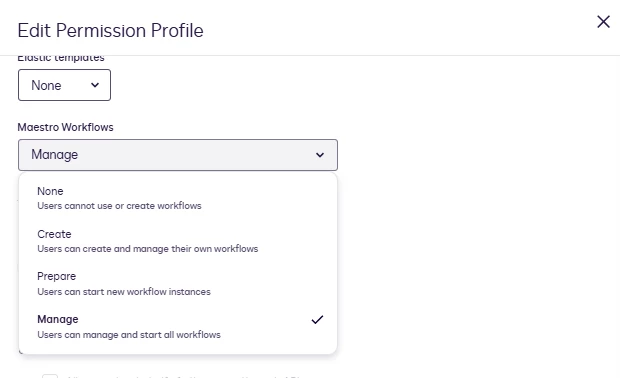
- The eSignature API can set Workflow Builder (formerly Maestro)-specific permissions (none, create, prepare, manage) at profile, user, or group scope.
- API-based or mixed changes can create situations where the Admin UI’s representation and the AuthZ relationships used by Workflow Builder (formerly Maestro) diverge.
Example: setting Workflow Builder (formerly Maestro) permissions via the eSignature API
You can update a Permission Profile to grant Workflow Builder (formerly Maestro) access using the AccountPermissionProfiles resource. Example endpoint and request body:
PUT /restapi/v2.1/accounts/{accountId}/permission_profiles/{permissionProfileId}
{
"permissionProfileName": "My Updated Permission Profile",
"settings": {
"allowedOrchestrationAccess": "manage"
}
} Even when the Admin UI displays Workflow Builder (formerly Maestro) = "manage" for that profile, Workflow Builder (formerly Maestro) may still not allow the user to create or manage workflows if the underlying AuthZ relationships were not refreshed the way Workflow Builder (formerly Maestro) expects.
How to recognize a divergence issue
Treat it as a permission divergence when:
- The Workflow Builder (formerly Maestro) UI does not match expected access (missing or greyed actions such as Create, Edit, Publish).
- Admin > Permission Profiles (or the API) indicates the user should have Workflow Builder (formerly Maestro) access, but the user’s Workflow Builder (formerly Maestro) experience does not reflect it.
- Admin tools and API say the user has permissions, but Workflow Builder (formerly Maestro) enforces fewer capabilities — indicating AuthZ does not yet reflect the same relationships.
Recommended fix: Reset permission profiles in the Admin UI
The most reliable remediation is to update (reset) the affected Permission Profile in the Admin web UI so AuthZ ingestion is retriggered. Applying the change from the Admin interface forces a resync of the permission relationships that Workflow Builder (formerly Maestro) consumes.
Step-by-step: Fixing the divergence
- Sign in to Docusign Admin.
- Go to Admin > Permission Profiles.
- Find the Permission Profile assigned to the affected user(s).
- Edit the Permission Profile and locate the Workflow Builder (formerly Maestro) permissions section.
- Select the desired Workflow Builder (formerly Maestro) permission level (none, create, prepare, or manage).
- Click Save. Saving the profile forces an AuthZ resync/ingestion.
- Have the affected user sign out and sign back into Workflow Builder (formerly Maestro) (or wait a few minutes for propagation), then confirm the Workflow Builder (formerly Maestro) UI reflects the updated capabilities.
Best practices to avoid future divergence
- Prefer making profile-level permission changes in the Admin UI when possible — the UI save ensures AuthZ ingestion runs as expected.
- If you must use the API, follow up with a profile save in Admin for any users/groups that will use Workflow Builder (formerly Maestro), or build in a verification step that ensures AuthZ relationships were established.
Additional resources
- Account Permission Profiles (eSignature REST API)
- Docusign Support & Documentation — search for Workflow Builder (formerly Maestro) permissions and AuthZ
Join the conversation
Have you seen this exact divergence, or do you use an API-first workflow for permissions? Share your experience or questions in the comments — we’ll help troubleshoot and collect feedback to improve our guidance.